You send the invites.
Players → Invite families. Every family without a login is listed and already ticked. Untick anyone to hold back, then send. One send reaches everyone.
Shown with a sample family: Isabelle Wills, parent of Kevin Wills. From the email to the family page, a parent needs about two minutes and never has to register: the club already has them.
Players → Invite families. Every family without a login is listed and already ticked. Untick anyone to hold back, then send. One send reaches everyone.
Test it on yourself first:
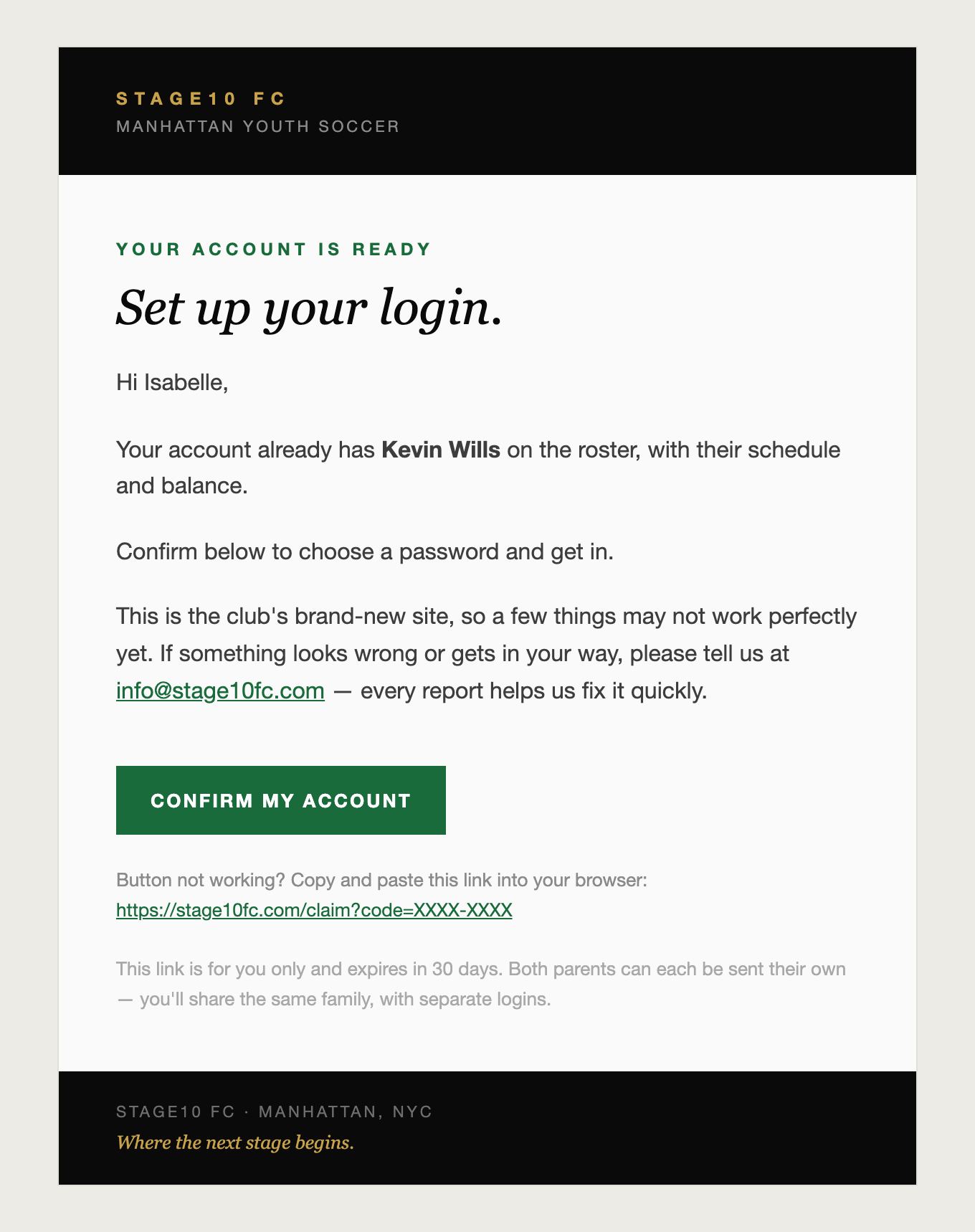
From Stage10 FC, subject Your Stage10 FC account is ready. It greets the parent by name and names their child, so they know it's really the club.
It also tells them the site is brand new and asks them to write to info@stage10fc.com if anything looks wrong.
They tap Confirm my account. If the button doesn't work in their email app, the link is written out underneath. It works only for that parent and expires in 30 days. Each parent can get their own invite and their own login to the same family.
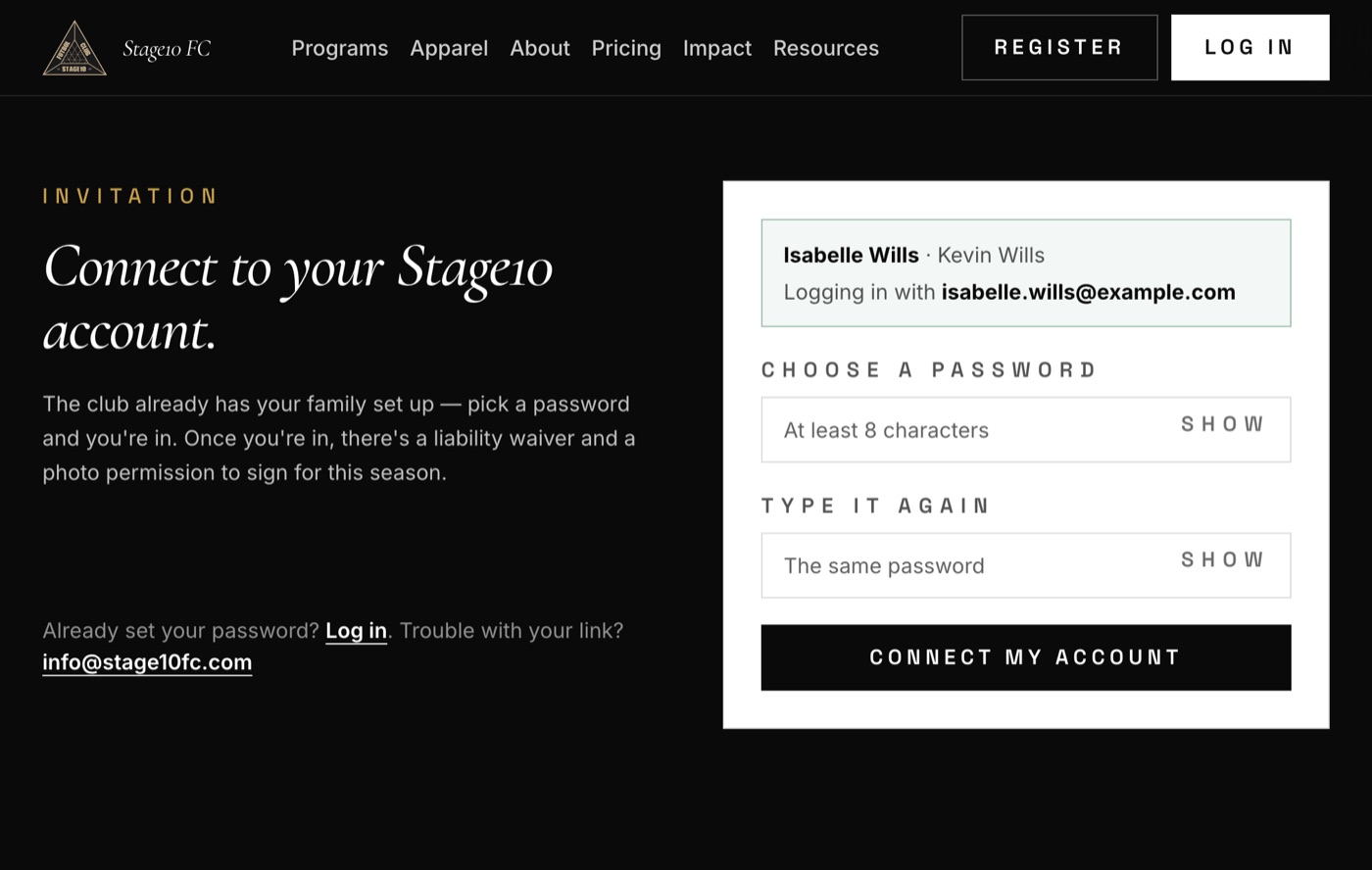
The page already shows their name, their child and their email address, so there is nothing to fill in except the password, twice.
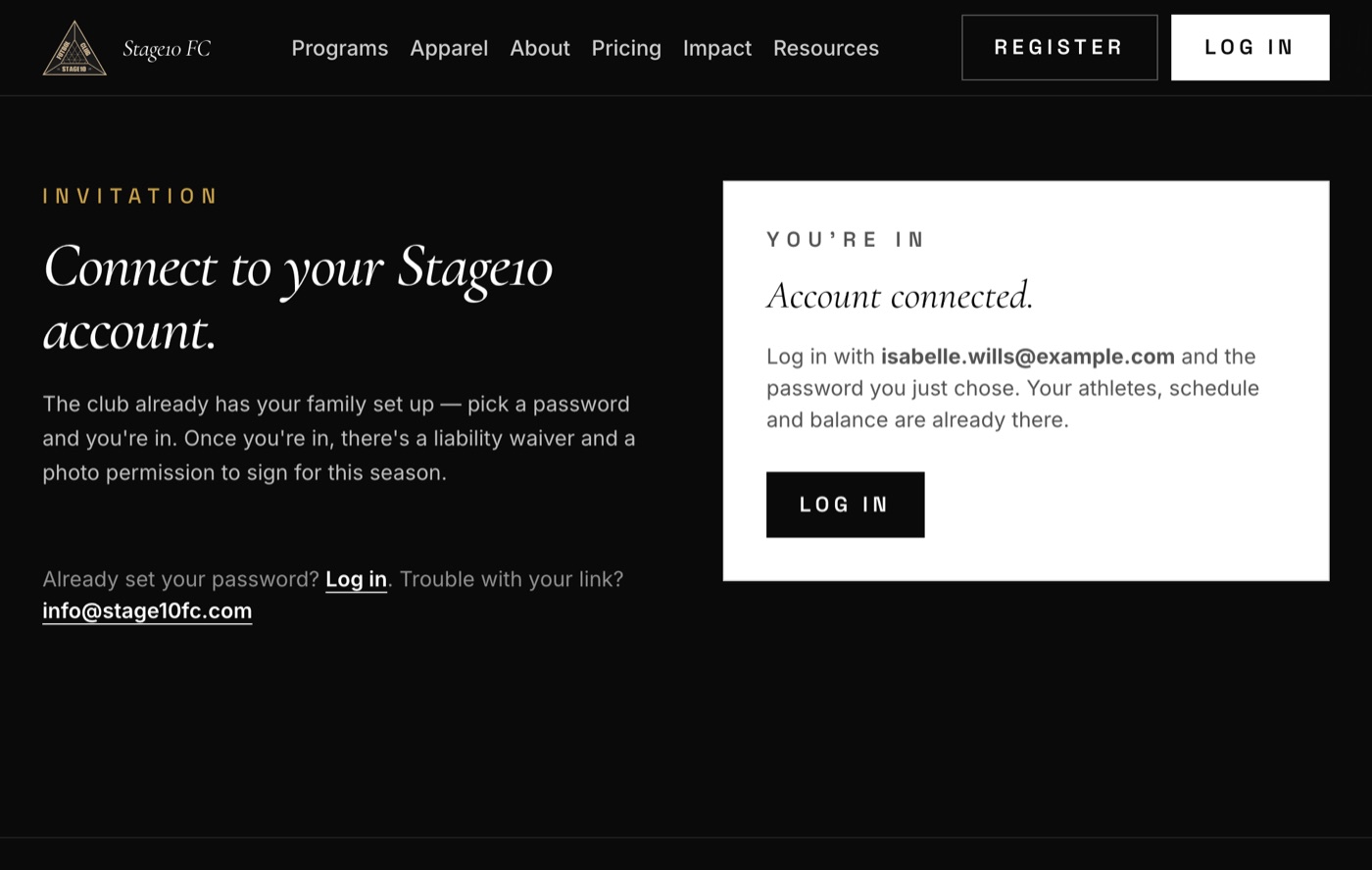
From now on they log in with that email and the password they just chose. Their athletes, schedule and balance are already there.
On your side, you now see them in Set up → Access, under Member (Adult).
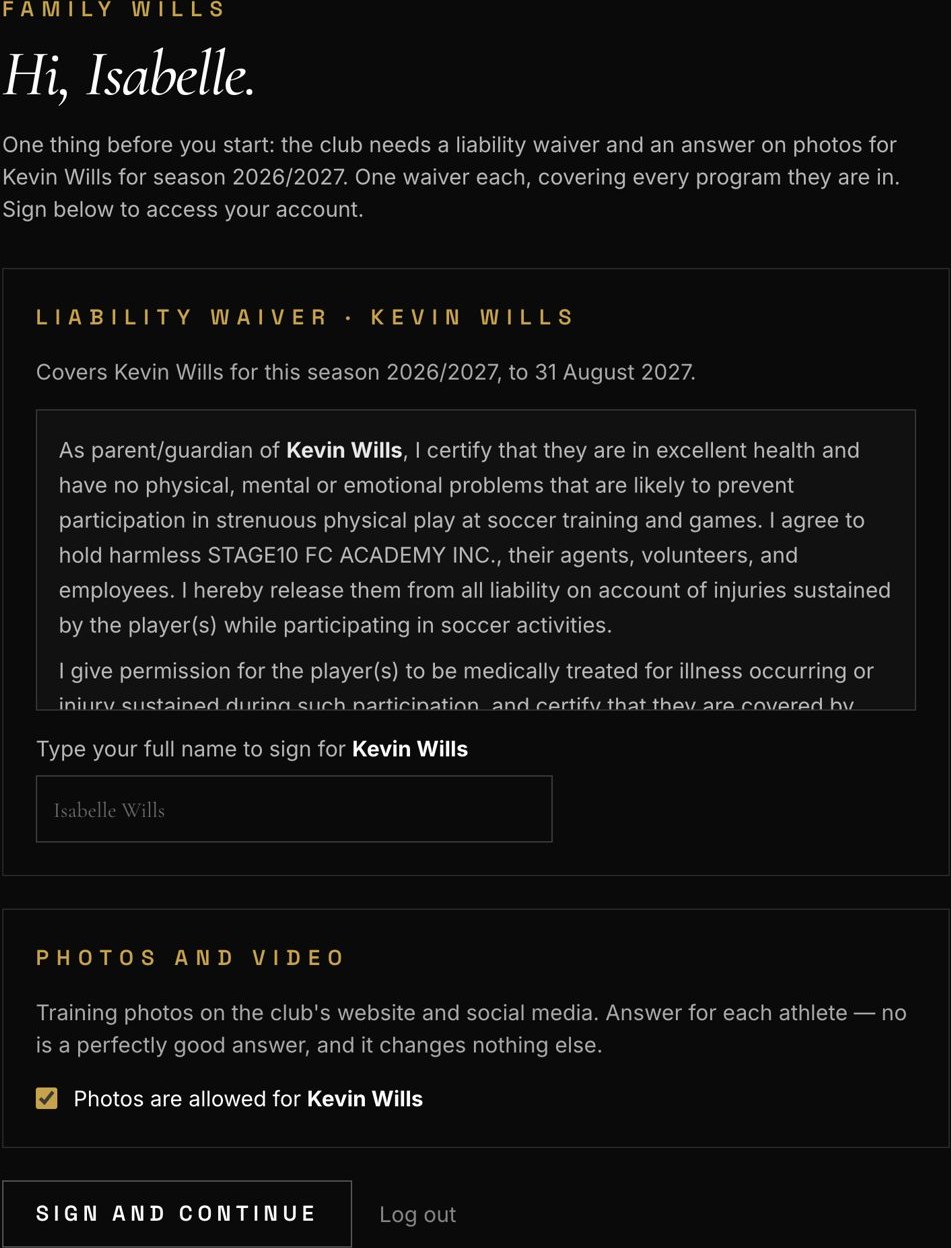
Before anything else, the parent signs this season's liability waiver by typing their name, and answers photos yes or no for each child. No is a perfectly good answer and changes nothing else.
One waiver per child covers every program they are in, until August 31, 2027.
Sign and continue opens their family page: their athletes, the schedule, the balance, and messages from the club.